Artworks
Add an artwork
Create an artwork record with images, details, dimensions, and status.
Artworks are the heart of your inventory. Each artwork record holds images, physical details, pricing, status, and its full history with your gallery.
Create the artwork#
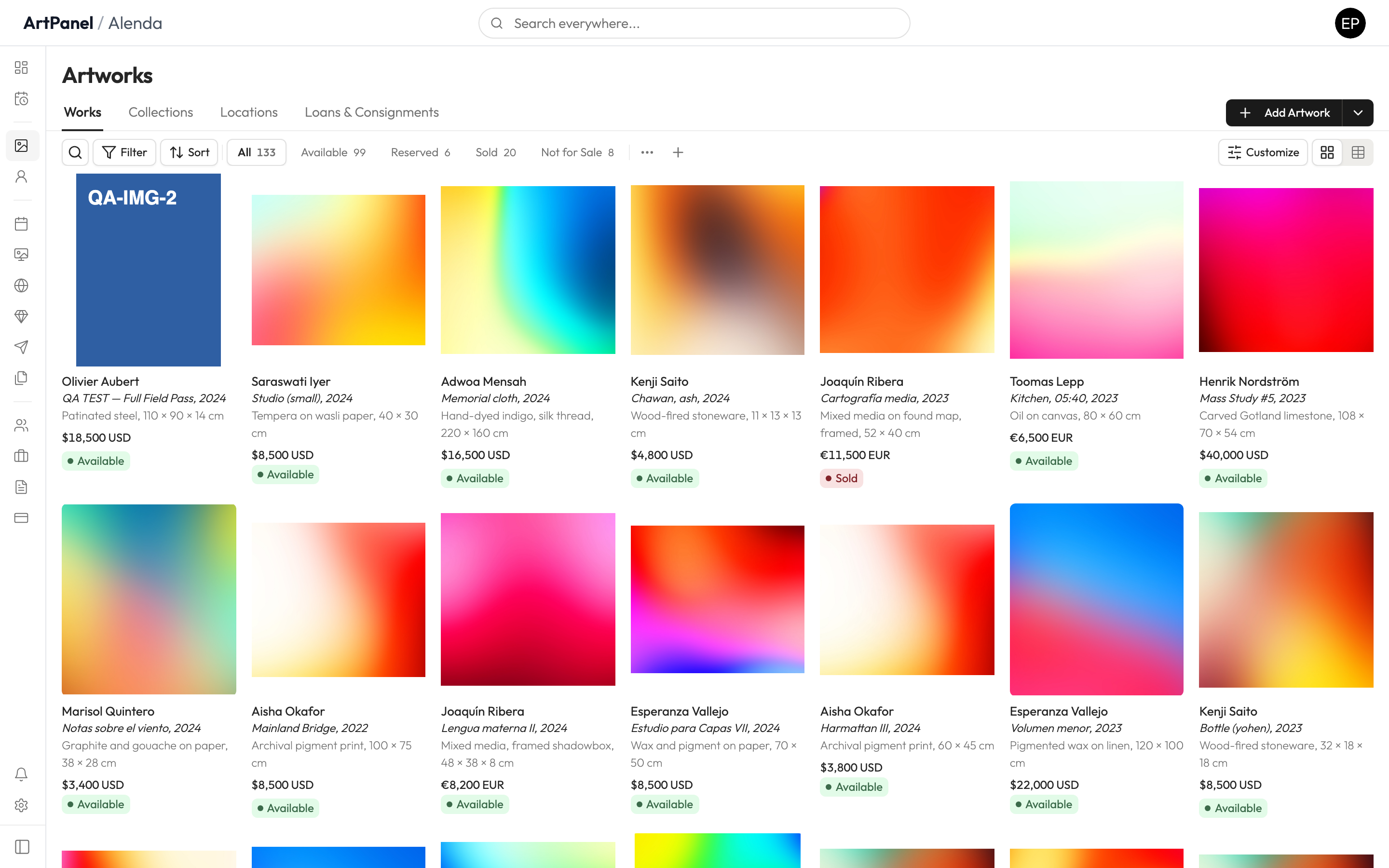
- Go to Artworks in the sidebar.
- Click Add Artwork.
- Choose the artist, give the work a title, and add the year.
- Upload one or more images — the first becomes the cover.
- Click Create.
Add the details#
Open the artwork you just created to fill in the rest:
- Dimensions — height, width, and depth. Art Panel uses these for size filters (Small / Medium / Large) automatically.
- Medium and materials.
- Price — the listed price; you can track acquisition cost separately.
- Location — where the work physically is right now.
- Inventory number — generated automatically using your gallery’s format (configurable in Settings).
Set the status#
Every artwork has a commercial status — Available, Reserved, or Sold. New artworks start as Available. Reserving a work can carry an expiry date, so a hold releases itself if the sale doesn’t move forward.
You can’t lose work here: if you delete an artwork by mistake, it goes to Settings → Trash and can be restored for 30 days. See Restore deleted items.
Did this answer your question?
Sorry about that — what were you looking for?
Still stuck? Email support@artpanel.app.
Thanks — that helps us keep these guides useful.
Related guides